 LinuxBlog.xyz
 January 7, 2026 - Patrick Kerwood
Authenticating OAuth2 Proxy to Entra ID Using Kubernetes Workload Identity
In this post, I’ll demonstrate how to configure an Azure App Registration with federated credentials and configure OAuth2 Proxy to use Kubernetes-issued workload identity tokens to authenticate itself during an OpenID Connect login flow.
Workload Identity Federation is quickly becoming the modern standard for workload authentication. For Kubernetes-based applications, you can establish a trust relationship between your Kubernetes cluster and Microsoft Entra ID that eliminates the need for long-lived secrets. With this in place, OAuth2 Proxy can use its Kubernetes service account token to authenticate using the client credentials flow and obtain tokens directly from the Entra ID token endpoint.
OAuth2 Proxy supports Entra ID workload identity federation (client assertion) out of the box, but the official documentation (opens new window) relies on the Azure AD Workload Identity (opens new window) admission controller. This controller mutates your pods to inject a projected service account token volume, mount it into the container, and expose the token path via an environment variable.
While this works well, it introduces additional moving parts for what is ultimately just a few Kubernetes fields. Instead, we’ll configure these pieces directly in our Deployment manifest and avoid the need for an admission controller altogether.
# Prerequisites
You will need a Kubernetes cluster with a publicly accessible /.well-known/openid-configuration endpoint so that Azure can retrieve the JSON Web Keys.
I’m using Google Kubernetes Engine, which provides this by default.
If you’re using an on-premises cluster and want to enable a public issuer URL, you can use a tool like k8s-apiserver-oidc-reverse-proxy (opens new window) to securely expose the endpoints. Keep in mind that the URL must exactly match the issuer URL configured for your cluster.
The cluster must have either an Ingress Controller or a Gateway with TLS configured to route incoming HTTPS traffic, along with a domain name for the application that resolves to the cluster.
You will also need an Azure tenant where you can create the App Registration.
# Issuer URL
You can retrieve your cluster’s issuer URL by running the command below. You’ll need this URL when creating the Federated Credential on the App Registration.
kubectl get --raw /.well-known/openid-configuration | jq -r '.issuer'
# Creating the App Registration
Start by creating a new App Registration:
- Go to App registrations in the Azure portal and click New registration.
- Enter a descriptive name for your application.
- Under Platform, select Web.
- Specify your redirect URL, for example:
https://your-domain.org/oauth2/callback. - Click Register to create the application.
Next step is to create the Federated Credential.
Navigate to Certificates & secrets on the App Registration, switch to the Federated credentials tab, and click Add credential. In the Federated credential scenario dropdown, select Kubernetes accessing Azure resources, then fill in the required fields.
- Cluster issuer URL
Paste the cluster issuer URL you retrieved in the previous step. - Namespace
Enter the Kubernetes namespace where your workload is running. - Service account name
Specify the name of the Kubernetes service account. In this example, we’re usingazure-demo. - Name
Provide a descriptive name for the credential. In this case, we’ll usesome-name.
See the example screenshot below.
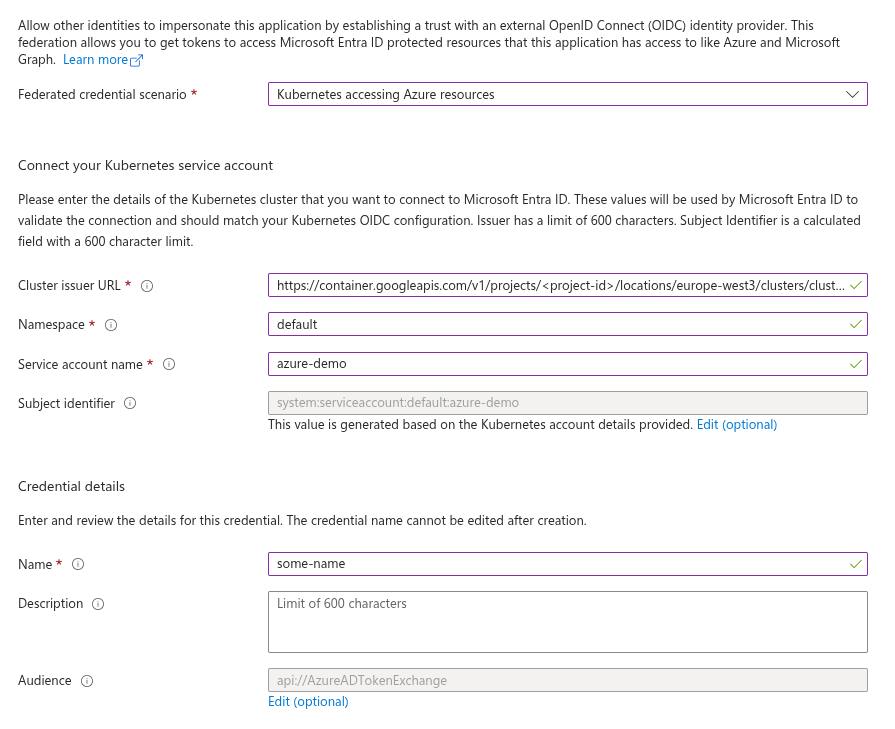
Click Add and that’s it! Your App Registration is now ready to use.
# Kubernetes Deployment
The final step is to deploy an application in Kubernetes with OAuth2 Proxy running as a sidecar.
The YAML below includes comments to explain each section, but here’s a brief overview of the resources used:
- Secret: Stores the cookie secret for encrypting the session cookie.
- ServiceAccount: The Kubernetes service account assigned to the workload.
- Deployment: Defines the application deployment.
- OAuth2 Proxy is configured as a sidecar container (opens new window).
- The main application uses the
nginxdemos/helloimage.
- Service: Exposes the Deployment internally within the cluster.
- HTTPRoute: Exposes the Deployment publically.
Configuring an Ingress Controller or Gateway is beyond the scope of this post, but you will need one with a TLS endpoint.
apiVersion: v1
kind: Secret
metadata:
  name: oauth2-proxy-secret
type: Opaque
data:
  # Create your own random string with below command.
  # echo -n $(openssl rand -base64 32 | tr -- '+/' '-_') | base64
  cookie-secret: "RlNFc0hOMXlhWDJya3lVUHk5SmpGT2p1N0h2TEpMMnJuZTZkWFZmdk5ZND0="
---
apiVersion: v1
kind: ServiceAccount
metadata:
  name: azure-demo
---
apiVersion: apps/v1
kind: Deployment
metadata:
  name: azure-demo
spec:
  selector:
    matchLabels:
      app.kubernetes.io/name: azure-demo
  template:
    metadata:
      labels:
        app.kubernetes.io/name: azure-demo
    spec:
      # Specifying the Kubernetes service account.
      serviceAccountName: azure-demo

      # OAuth2 Proxy is configured as an init container with
      # restartPolicy: Always, which enables the new sidecar feature.
      initContainers:
      - name: oauth2-proxy
        image: quay.io/oauth2-proxy/oauth2-proxy:v7.13.0
        restartPolicy: Always
        ports:
        - containerPort: 4180
          name: proxy
          protocol: TCP
        args:
        # The Entra ID issuer URL. Replace <tenant-id>
        - --oidc-issuer-url=https://login.microsoftonline.com/<tenant-id>/v2.0

        # The client ID of the App Registration, replace <client-id>.
        - --client-id=<client-id>

        # This configuration is what enables OAuth2 Proxy to use
        # the token instead of a client secret.
        - --entra-id-federated-token-auth=true

        # Replace with your domain name.
        - --cookie-domain=your-domain.org

        - --http-address=0.0.0.0:4180
        - --upstream=http://127.0.0.1
        - --provider=entra-id
        - --email-domain=*
        - --skip-provider-button
        env:
        # This is the environment variable OAuth2 Proxy will be
        # using to locate the access token for client authentication.
        # Matches below volume mount.
        - name: AZURE_FEDERATED_TOKEN_FILE
          value: /var/run/secrets/tokens/azure-token

        - name: OAUTH2_PROXY_COOKIE_SECRET
          valueFrom:
            secretKeyRef:
              name: oauth2-proxy-secret
              key: cookie-secret

        # The serviceAccountToken volume is mounted.
        volumeMounts:
        - mountPath: /var/run/secrets/tokens/
          name: azure-token
          readOnly: true

      # This is the main application, a simple NGINX webserver.
      containers:
      - name: web-app
        image: nginxdemos/hello:latest
        ports:
        - containerPort: 80
          name: http
          protocol: TCP

      # The projected serviceAccountToken volume is defined here
      # with a fixed audience.
      volumes:
      - name: azure-token
        projected:
          sources:
          - serviceAccountToken:
              audience: api://AzureADTokenExchange
              expirationSeconds: 3600
              path: azure-token
---
# The following Service and HTTPRoute are included for this example.
# They are part of the demo setup and may differ from your environment.
# Configuring Services, Ingress Controllers, or Gateways is out of scope for this post.
apiVersion: v1
kind: Service
metadata:
  name: azure-demo
spec:
  selector:
    app.kubernetes.io/name: azure-demo
  ports:
  - name: proxy
    port: 4180
    targetPort: 4180
    protocol: TCP
  type: ClusterIP
---
apiVersion: gateway.networking.k8s.io/v1
kind: HTTPRoute
metadata:
  name: azure-demo
spec:
  parentRefs:
  - name: gateway-name
    namespace: gateway-namespace
  hostnames:
  - "your-domain.org"
  rules:
  - matches:
    - path:
        type: PathPrefix
        value: /
    backendRefs:
    - name: azure-demo
      port: 4180
Adjust the YAML above to match your environment and deploy it to your cluster. You should now have OAuth2 Proxy running as part of your deployment, using federated credentials to complete the OIDC authentication flow.
# References
- Caddy Docs: Entra ID Workload Federation (opens new window)
- Caddy Docs: Configuration Overview (opens new window)